PDF TO CHEAT SHEET / A WORKED EXAMPLE
Turn a PDF into a cheat sheet.
Bring a PDF, check its extracted text, arrange the notes and edit a reference sheet. Local imports, editing and exports are free and need no account. AI is optional.
By Sheetmint · Published 10 October 2026
Open the free cheatsheet maker →
1. Try a PDF you can check
Start with a short chapter or selected pages. You can use our original two-page study-notes PDF: it contains six sections and simple arithmetic, including 12 metres divided by 3 seconds. It contains no private course materials.
In the maker, choose Upload files, then Choose files. Select your PDF. A text PDF can contain up to 50 pages. A PDF requiring OCR is limited to eight pages. The file limit is 10 MB, and extracted text is limited to 60,000 characters per file. Use smaller chapters when needed.
2. Review what the PDF actually contained
Open Review extracted text under the imported file. Check the first and last page, units, minus signs, fractions and tables against the original. PDF extraction is not a guarantee of preserved layout or meaning.
Our sample includes page headers, footers and page labels. Remove those repeated lines in the extracted-text editor while keeping the six topic headings and their body text. This gives Arrange notes a clean source without changing the original PDF. For a scan, choose the correct scan language and review the OCR warning and result.
3. Arrange locally, then edit
Click Arrange notes. This groups text under headings and retains body text. It does not summarize with AI. Shorten locally selects lines and can remove details, so compare a shortened result with your source. You can change a section heading, edit notes, reorder sections or add a formula.
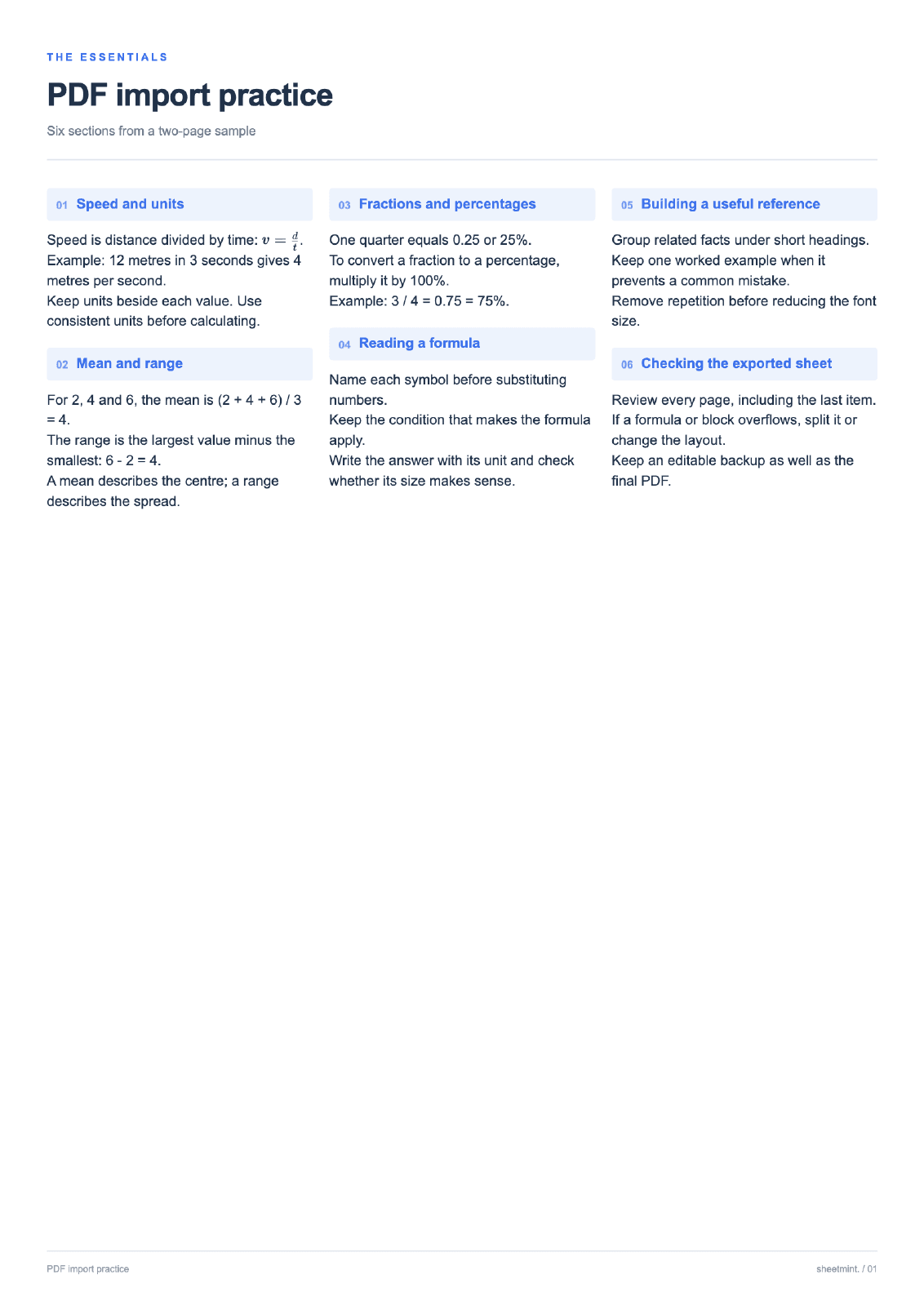
In our worked example, removing the page furniture produces six sections: Speed and units, Mean and range, Fractions and percentages, Reading a formula, Building a useful reference and Checking the exported sheet. The formula $v=\frac{d}{t}$ becomes typeset math in the preview. The numerical example remains 12 / 3 = 4 metres per second.
You do not need the AI checkbox for this workflow. If you choose an AI action, selected extracted text and optional course details are sent through Vercel AI Gateway to Google with no-training and zero-retention routing. Review the result rather than treating generated text as a source.
4. Choose a readable page layout
Set paper size, orientation, columns and font size under Layout. The cleaned sample fits on one A4 page in the default three-column layout. That is an example outcome, not a promise that a chapter or a textbook will fit on one page.
Keep a formula's conditions and units. Remove repetition before shrinking text. Fit to one page can reduce text size to 9px; longer content continues on additional pages. A formula wider than its column or a single oversized block requires a layout change or a split before PDF or PNG export.
5. Check the downloaded result
Click Download PDF and open the downloaded file. It contains rendered images of every preview page. Inspect the last section, formulas and page edges at actual size. In this sample, the final section and its last sentence are present, and the speed formula is typeset.
For selectable text, choose Searchable PDF / print and Save as PDF in the browser print dialog. Match the paper size and orientation, use 100% scale and zero margins, remove browser headers and footers, and enable background graphics. Keep Save editable JSON for future edits. Word and PowerPoint provide editable text with a simplified layout.
Common questions
Can I turn a PDF into a cheat sheet without AI?
Yes. Choose Upload files, import the PDF, review its extracted text and click Arrange notes. Arrange keeps the body text and groups it under headings. Shorten locally selects original lines and may omit details; it is not AI. You can edit the sheet and download it without an account.
Does importing my PDF send it to an AI provider?
Local PDF reading, Arrange notes, editing and export run in your browser. AI requires the Allow AI processing checkbox and an explicit AI action. Selected extracted text and optional course details then go through Vercel AI Gateway to Google with no-training and zero-retention routing. Save to account, Publish and revocable cloud links are separate explicit uploads.
Can Sheetmint read a scanned PDF?
Pages with little readable text use local OCR. Choose the scan language and check the recognized words, numbers and formulas. PDFs requiring OCR are limited to eight pages; split a longer scan before importing. OCR downloads language assets from a CDN, while image pixels remain in the browser.
What are the PDF import limits?
Import up to ten files, at most 10 MB each. A text PDF can have up to 50 pages; a PDF requiring OCR must have no more than eight. Extracted text is limited to 60,000 characters per file. A file over a limit is rejected with a message rather than silently skipping pages.
Will every PDF fit on one cheat-sheet page?
No. The result depends on the amount of text, formulas, font size, columns and paper size. Fit to one page can reduce text to 9px. Longer content continues on more pages. A wide formula or an indivisible oversized block must be fixed before PDF or PNG export. Keep important conditions and readable text.
Is the downloaded PDF searchable or editable?
Download PDF reproduces the preview as rendered page images. For selectable text, use Searchable PDF / print and choose Save as PDF in the browser dialog. Keep editable JSON to reopen the full Sheetmint document; Word and PowerPoint exports use a simplified editable layout.
Read the complete editing and sharing guide or the privacy details. Use reference sheets only where permitted.